
Displaying items by tag: shortcut
You want to leave your PC or Mac without shutting it down, but you are afraid that someone will use your session or play a prank on you? Then simply lock your session to prevent anyone from using it in your absence.
Here are the instructions to know how to lock your computer according to your operating system:

You want to type the middle dot / median dot (·), on your keyboard but don't know how? It's very simple, just do the key combination described below.
There is no direct key that exists to realize the middle dot / median dot (·) on keyboards, but there are keyboard shortcuts that allows you to perform this combination. See below :
Make the middle dot / median dot (·) on Windows :
Type the following key combination : Alt + 0 1 8 3 → ·
The technique : Keep the Alt key pressed (key just to the left of the Space bar), then you successively type the numbers 0 1 8 3 then you finally release the Alt key, which will bring up the middle dot / median dot at desired location.
Make the middle dot / median dot (·) on Mac / MacBook :
Type the following key combination :
⌥ Option + ⇧ Shift + 9 → ·
The technique: Keep the Option ⌥ and ⇧ Shift keys pressed, then type on the 9 key which will bring up the middle dot / median dot (·) at desired location.
Info : On some Mac / MacBook keyboard configuration, the Option ⌥ key can be named Alt ⌥
Make the middle point / midpoint (·) on your smartphone (Android / Samsung / Huawei / Iphone):
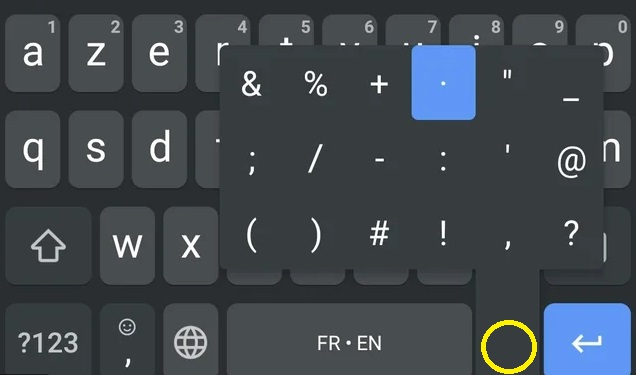
On your keyboard, keep the "dot" key . pressed until a list of characters appears and select the midpoint from the list
If you want to make the middle dot / median dot (·) in HTML , you must type : ·
Troubleshooting
" I don't have a numeric keypad on my keyboard, what should I do? "
- If you don't have a numeric keypad on your keyboard, make sure you have activated the function Num Lock . If not, press the Fn + button Num Lock
- If you do not have the function Num Lock on your keyboard, try first pressing the key Fn and then performing the combination with Alt described in the previous paragraph.
- If you still can't do it, don't hesitate to copy and paste the symbol from this article to the location of your choice.
" I have a Mac / Macbook / Apple computer "
If you have a Mac / Apple keyboard, the technique is the same. The Alt ⌥ key can also be called Option ⌥ but it is always the key just to the left of the Space bar.
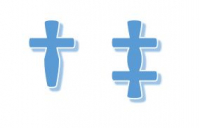
You want to type the the cross † (dagger) or the double cross ‡ (double dagger) on your keyboard but don't know how? It's very simple, just do the key combination described below.
There is no direct key that exists to realize the cross † (dagger) or the double cross ‡ (double dagger) on keyboards, but there are keyboard shortcuts that allows you to perform this combination. See below :
Make the cross † (dagger) on Windows :
Type the following key combination : Alt + 0 1 3 4 → †
Make the double cross ‡ (double dagger) on Windows :
Type the following key combination : Alt + 0 1 3 5 → ‡
The technique : Keep the Alt key pressed (key just to the left of the Space bar), then you successively type the numbers 0 1 3 4 for the simple cross † (dagger) or 0 1 3 5 for the double cross ‡ (double dagger) then you finally release the Alt key, which will bring up the symbol at desired location.
Make the cross † / double cross ‡ on Mac / MacBook :
- Make the cross † (dagger) :
Type the following key combination : ⌥ Option + B → †
- Make the double cross † (double dagger) :
Type the following key combination : ⌥ Option + Z → ‡
The technique: Keep the Option ⌥key pressed, then type on the B key for a simple cross or the Zkey for the double cross which will bring up the symbol at desired location.
Info : On some Mac / MacBook keyboard configuration, the Option ⌥ key can be named Alt ⌥
If you want to make the dagger or double dagger in HTML :
- Simple dagger † : †
- Double dagger ‡ : ‡
Troubleshooting
" I don't have a numeric keypad on my keyboard, what should I do? "
- If you don't have a numeric keypad on your keyboard, make sure you have activated the function Num Lock . If not, press the Fn + button Num Lock
- If you do not have the function Num Lock on your keyboard, try first pressing the key Fn and then performing the combination with Alt described in the previous paragraph.
- If you still can't do it, don't hesitate to copy and paste the symbol from this article to the location of your choice.
" I have a Mac / Macbook / Apple computer "
If you have a Mac / Apple keyboard, the technique is the same. The Alt ⌥ key can also be called Option ⌥ but it is always the key just to the left of the Space bar.

You want to type the inverted interrogation mark (¿), typical of spanish and south american languages, on your keyboard but don't know how? It's very simple, just do the key combination described below.
There is no direct key that exists to realize the inverted interrogation mark (¿) on other keyboards than spanish ones, but there are keyboard shortcuts that allows you to perform this combination on any keyboard. See below :
Make the inverted interrogation mark (¿) on Windows :
Type the following key combination : Alt + 0 1 9 1 → ¿
The technique : Keep the Alt key pressed (key just to the left of the Space bar), then you successively type the numbers 0 1 9 1 then you finally release the Alt key, which will bring up the inverted interrogation mark at desired location.
Make the inverted interrogation mark (¿) on Mac / MacBook :
Type the following key combination : ⌥ Option + ⇧ Shift + / → ¿
The technique: Keep the Option ⌥ and ⇧ Shiftkeys pressed, then type on the / sign (slash) which will bring up the inverted interrogation mark (¿) at desired location.
Info : On some Mac / MacBook keyboard configuration, the Option ⌥ key can be named Alt ⌥
If you want to make the inverted interrogation mark (¿) in HTML , you must type ¿
Troubleshooting
" I don't have a numeric keypad on my keyboard, what should I do? "
- If you don't have a numeric keypad on your keyboard, make sure you have activated the function Num Lock . If not, press the Fn + button Num Lock
- If you do not have the function Num Lock on your keyboard, try first pressing the key Fn and then performing the combination with Alt described in the previous paragraph.
- If you still can't do it, don't hesitate to copy and paste the symbol from this article to the location of your choice.
" I have a Mac / Macbook / Apple computer "
If you have a Mac / Apple keyboard, the technique is the same. The Alt ⌥ key can also be called Option ⌥ but it is always the key just to the left of the Space bar.

You want to type the inverted exclamation mark (¡), typical of spanish and south american languages, on your keyboard but don't know how? It's very simple, just do the key combination described below.
There is no direct key that exists to realize the inverted exclamation mark (¡) on other keyboards than spanish ones, but there are keyboard shortcuts that allows you to perform this combination on any keyboard. See below :
Make the inverted exclamation mark (¡) on Windows :
Type the following key combination : Alt + 0 1 6 1 : ¡
The technique : Keep the Alt key pressed (key just to the left of the Space bar), then you successively type the numbers 0 1 6 1 then you finally release the Alt key, which will bring up the inverted exclamation mark at desired location.
Make the inverted exclamation mark (¡) on Mac / MacBook :
Type the following key combination : ⌥ Option+ 1 : ¡
The technique: Keep the Option ⌥key pressed, then type on the number 1, which will bring up the inverted exclamation mark (¡) at desired location.
Info : On some Mac / MacBook keyboard configuration, the Option ⌥ key can be named Alt ⌥
If you want to make the inverted exclamation mark (¡)
in HTML , you must type ¡
Troubleshooting
" I don't have a numeric keypad on my keyboard, what should I do? "
- If you don't have a numeric keypad on your keyboard, make sure you have activated the function Num Lock . If not, press the Fn + button Num Lock
- If you do not have the function Num Lock on your keyboard, try first pressing the key Fn and then performing the combination with Alt described in the previous paragraph.
- If you still can't do it, don't hesitate to copy and paste the symbol from this article to the location of your choice.
" I have a Mac / Macbook / Apple computer "
If you have a Mac / Apple keyboard, the technique is the same. The Alt ⌥ key can also be called Option ⌥ but it is always the key just to the left of the Space bar.

You want to type the ß letter (german Eszett) on your keyboard but don't know how? It's very simple, just do the key combination described below.
The letter ß is only used in the german language and can eventually be replaced with "ss" on your keyboard if the character is unavailable or capitalized
There is no key that exists to do the "Eszett" letter on other keyboards than german ones, but there are keyboard shortcuts that allows you to perform this combination on any keyboard. See below :
Make the Eszett letter (ß) on Windows :
Type the following key combination : Alt + 0 2 2 3 : ß
The technique : Keep the Alt key pressed (key just to the left of the Space bar), then you successively type the numbers 0 2 2 3 then you finally release the Alt key, which will bring up the "Eszett" letter at desired location.
Make the Eszett letter (ß) on Mac / MacBook :
Type the following key combination : ⌥ Alt+ S : ß
The technique: Keep the Option ⌥key pressed, then type on the letter S, which will bring up the "Eszett" : ß at the desired location.
Info : On some Mac / MacBook keyboard configuration, the Alt ⌥ key can be named Option ⌥
If you want to make the symbol "Eszett" in HTML , you must type ß
Troubleshooting
" I don't have a numeric keypad on my keyboard, what should I do? "
- If you don't have a numeric keypad on your keyboard, make sure you have activated the function Num Lock . If not, press the Fn + button Num Lock
- If you do not have the function Num Lock on your keyboard, try first pressing the key Fn and then performing the combination with Alt described in the previous paragraph.
- If you still can't do it, don't hesitate to copy and paste the symbol from this article to the location of your choice.
" I have a Mac / Macbook / Apple computer "
If you have a Mac / Apple keyboard, the technique is the same. The Alt ⌥ key can also be called Option ⌥ but it is always the key just to the left of the Space bar.

You want to type the ± sign on your keyboard but don't know how? It's very simple, just do the key combination described below.
The plus or minus sign (±) is commonly used in mathematics when approximating to denote precision. For example, "20 ± 0.6" indicates an amount that is equal or less than 0.6 units of 20; That is to say between 20 - 0.6 and 20 + 0.6, so between 19.4 and 20.6.
There is no key that exists for this symbol, but there are keyboard shortcuts that allows you to perform this combination. See below :
Make the "plus or minus" sign ± on Windows :
Type the following key combination : Alt + 0 1 7 7 : ±
The technique : Keep the Alt key pressed (key just to the left of the Space bar), then you successively type the numbers 0 1 7 7 then you finally release the Alt key, which will bring up the "Cent" symbole at desired location.
Make the "plus or minus" sign ± on Mac / MacBook :
Type the following key combination :
⌥ Alt+ ⇧ Shift + = : ±
The technique: Keep the Alt ⌥ and ⇧ Shift keys pressed, then type on the key =, which will bring up the "plus or minus" sign : ± at the desired location.
Info : On some Mac / Macbook keyboard configuration, the Alt ⌥ key can be named Option ⌥
If you want to make the symbol "plus or minus" in HTML , you must type &plusmm;
Troubleshooting
" I don't have a numeric keypad on my keyboard, what should I do? "
- If you don't have a numeric keypad on your keyboard, make sure you have activated the function Num Lock . If not, press the Fn + button Num Lock
- If you do not have the function Num Lock on your keyboard, try first pressing the key Fn and then performing the combination with Alt described in the previous paragraph.
- If you still can't do it, don't hesitate to copy and paste the symbol from this article to the location of your choice.
" I have a Mac / Macbook / Apple computer "
If you have a Mac / Apple keyboard, the technique is the same. The Alt ⌥ key can also be called Option ⌥ but it is always the key just to the left of the Space bar.

Do you want to type the symbol " ë " (e with diaeresis in lowercase) or "Ë" (e with diaeresis in uppercase) and do not know how to do it in a text field, a word processing document? Follow the technique below.
*The "Diaeresis" can also be called "Umlaut" or "Trema".
1. Make the symbol "E with diaeresis" (ë or Ë) on Windows :
"E with diaeresis" in lowercase : Alt + 0 2 3 5 = ë
"E with diaeresis" in uppercase : Alt + 0 2 0 3 = Ë
The technique : You keep the Alt key pressed (key just to the left of the Space bar), then you successively type the numbers 0 2 3 5 for lowercase E with diaeresis (ë) or the numbers 0 2 0 3 for uppercase E with diaeresis (Ë), then you finally release the Alt key, which will bring up the desired letter.
2. Make the symbol "E with diaeresis" (ë or Ë) on Mac / Apple :
"E with diaeresis" in lowercase : Option ⌥ + U then E = ë
The technique: Press the Option ⌥ key and U letter together, release them, then press the letter E , which will bring up the lowercase "E with diaeresis" : ë
"E with diaeresis" in uppercase : Option ⌥ + U then Shift ⇧ + E = Ë
The technique: Press the Option ⌥ key and U letter together, release them, then press the Shift ⇧ key + the letter E , which will bring up the uppercase "E with diaeresis" : Ë
" I don't have a numeric keypad on my keyboard, what should I do? "
- If you do not have a numeric keypad on your keyboard, make sure you have activated the Num Lock (or " Num Lock ") function. If not, press the Fn + Num Lock key .
- If you don't have Num Lock on your keyboard, try pressing the Fn key first and then performing the combination with Alt described in the previous paragraph.
- If you still can't do it, don't hesitate to copy and paste the symbol from this article to the location of your choice.
" I have a Mac / Macbook / Apple computer "
If you have a Mac / Apple keyboard, the technique is the same. The Alt key can also be called Option ⌥ but it is always the key just to the left of the Space bar: Alt ⌥
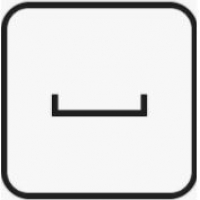
Do you want to create a non-breaking space between two letters or characters to ensure the entire expression remains on one and the same line? You're in luck because there is a very simple technique to create a non-breaking space on your keyboard. Follow the guide below.
There is no key that exists for this letter, but there are keyboard shortcuts that allows you to perform this combination.
1. Make a non-breaking space (Windows) : Alt + 2 5 5
- The technique : You keep the Alt key pressed (key just to the left of the Space bar), then you successively type the numbers 2 5 5, then you finally release the Alt key, which will bring up the non-breaking space as desired location.
- There is even a simpler technique to remember to make a non-breaking space in Microsoft Office softwares (Word, Excel, Outlook or Powerpoint, etc...) : Ctrl + ⇧ Shift + Space
2. Make a non-breaking space on Mac / Apple : Alt ⌥ + Space bar
The technique: Keep the Alt ⌥ key pressed, then type on your Space bar, which will bring up the non-breaking space as desired location.
Info : On some Mac / Macbook keyboard configuration, the Alt ⌥ key can be named Option ⌥

Do you want to type the symbol " Â " ("A circumflex accent in capital" or "A circumflex accent in lowercase" : â) and do not know how to do it in a text field, a word processing document ? Follow the technique below.
Indeed, there is no key that exists on the keyboard, it can be very practical to be able to do it, for example on a word title or slogan. Just type in the key shortcuts detailled below :
1. Make the symbol "A circumflex accent" (â or Â) on Windows
"uppercase A circumflex accent" : Alt + 0 1 9 4 = Â
"lowercase A circumflex accent" : Alt + 0 2 2 6 = â
The technique : You keep the Alt key pressed (key just to the left of the Space bar), then you successively type the numbers 0 1 9 4 (for "uppercase A with circumflex accent "Â") or 0 2 2 6 (for "lowercase A with circumflex accent" "â"), then you finally release the Alt key, which will bring up the symbol " A circumflex accent uppercase ": Â
2. Make the symbol "A circumflex accent" (â or Â) on Mac/MacBook
Make the symbol "uppercase A circumflex accent" :
- keep Shift ⇧ + A pressed down then select  on the menu that just appeared
Make the symbol "lowercase A circumflex accent" :
- keep a key pressed down then select â on the menu that just appeared
The technique: Keep the Shift ⇧ key pressed, then without releasing Shift, keep the letter A pressed until a menu appears above the letter E, then click on the proposition  and finally release everything, which will bring up the symbol "capital A circumflex accent" : Â.
For the lowercase "â", simply keep the letter A pressed down and select "â" in the menu that appears.
" I don't have a numeric keypad on my keyboard, what should I do? "
- If you do not have a numeric keypad on your keyboard, make sure you have activated the Num Lock (or " Num Lock ") function. If not, press the Fn + Num Lock key .
- If you don't have Num Lock on your keyboard, try pressing the Fn key first and then performing the combination with Alt described in the previous paragraph.
- If you still can't do it, don't hesitate to copy and paste the symbol from this article to the location of your choice.

Are you in the process of writing but cannot find how to make arrows symbols like this : → (right arrow),← (left arrow),↑ (top arrow),↓ (down arrow) in your text ?
The good news is that it's very easy to achieve them thanks to a combination of keys on your keyboard usually known as "keyboard shortcut".
1. Make the arrows with keyboard shortcuts under Windows
- Make the "left" arrow : Alt + 2 7 : ←
- Make the "right" arrow : Alt + 2 6 : →
- Make the "down" arrow : Alt + 2 5 : ↓
- Make the "up" arrow : Alt + 2 4 : ↑
The technique : You keep the Alt key pressed (the key to the left of your Space bar), then you successively type the previously indicated numbers, then you finally release the Alt key, which will make the desired arrow appears.

Are you in the process of writing but cannot find how to do the "Infinite" symbol ( "∞") ?
The good news is that it's very easy to achieve Infinite symbol thanks to a combination of keys on your keyboard. You can make this symbol using the key combinations explained below.
1. Make the "Infinite" symbol (∞) under Windows
- Make the symbol "Infinite" : Alt + 8 7 3 4 -->∞
The technique : You keep the Alt key pressed (the key to the left of your Space bar), then you successively type the numbers 8 7 3 4 then you finally release the Alt key, which will make the "Infinite" symbol appear : ∞
Important : This technique only works with Microsoft products as Word, Outlook, Powerpoint, etc...
If you want to achieve this symbol in another software, you'll have to go through the "Special Caracters" menu of the software.
On some keyboard configuration, the following combination can work : Alt + 2 3 6
Alternatively, you can simply copy-paste the symbol from this webpage : ∞
2. Make the "Infinite" symbol (∞) under Mac / Macbook
- Make the symbol "Infinite" : ⌥ Alt + , -->∞
The technique : You keep the ⌥ Altkey pressed (the key to the left of your Space bar), then you successively type the sign , (comma), then you finally release the ⌥ Altkey, which will make the "Infinite" symbol appear : ∞
Alternatively, you can simply copy-paste the symbol from this webpage : ∞
![How to make the brackets [ ] on your keyboard](/media/k2/items/cache/c6cc8653a2d1ab0297db1dc5c83099fb_Generic.jpg?t=20230403_234025)
Do you want to type the left and right brackets symbols "[ ]" and do not know how to do it in a text field, a word processing document? Follow the technique below.
On a typical english keyboard disposition, those keys are disposed at the right of P letter but if you have a different keyboard disposition, you maybe don't have these keys on your keyboard.
Happily, there is a possibility to create theses symbols on every keyboard disposition by following the instructions below.
1. Make the symbol "brackets" [ ] on Windows
Make the "left bracket" : Alt + 0 9 1= [
Make the "right bracket" : Alt + 0 9 3= ]
The technique : You keep the Alt key pressed (key just to the left of the Space bar), then you successively type the numbers 0 9 1 (for the left bracket [ )or 0 9 3 (for the right bracket ] ) then you finally release the Alt key, which will bring up the symbol [ or ]
2. Make the symbol "brackets" [ ] on Mac / Macbook/ Apple
Make the "left bracket" symbol :
Alt ⌥ + Shift ⇧ + ( =[
Make the "right bracket" symbol :
Alt ⌥ + Shift ⇧ + ) = ]
The technique: Keep the Alt ⌥ and Shift ⇧ key pressed, then type the key (, which will bring up the symbol [
OR keep the Alt ⌥ and Shift ⇧ key pressed, then type the key ), which will bring up the symbol ]

Do you want to type the symbol " À " (A acute in capital or in lowercase : à) and do not know how to do it in a text field, a word processing document? Follow the technique below.
Indeed, there is no key that exists on the keyboard, it can be very practical to be able to do it, for example on a word title or slogan .
1. Make the symbol "A acute" (à or À) on Windows :
Make the symbol "uppercase A acute" : Alt+ 0 1 9 2 = À
Make the symbol "lowercase A acute" : Alt+ 0 2 2 4= à
The technique : You keep the Alt key pressed (key just to the left of the Space bar), then you successively type the numbers 01 9 2 (for uppercase A acute "À") or 0 2 2 4 (for lowercase A acute "à"), then you finally release the Alt key, which will bring up the symbol " A acute uppercase ": À
2. Make the symbol "uppercase E acute" on Mac / Apple :
Make the symbol "uppercase A acute" : keep Shift ⇧+ A pressed down then select À
Make the symbol "lowercase A acute" : keep A pressed down then select À
The technique: Keep the Shift ⇧ key pressed, then without releasing Shift, keep the letter A pressed until a menu appears above the letter E, then click on the propositionÀ and finally release everything, which will bring up the symbol "capital A acute" : À.
For the lowercase "à", simply keep the letter A pressed down and select "à" in the menu that appears.

Are you in the process of writing but cannot find the "Different of" symbol "≠" ("crossed out equal" sign). The good news is that it's very easy to achieve it thanks to a combination of keys on your keyboard. You can make this symbol using the key combination explained below.
1. Make the "Different of" symbol (≠) under Windows
Make the symbol "Different of" : Alt + 8 8 0 0 --> ≠
The technique : You keep the Alt key pressed (the key to the left of your Space bar), then you successively type the numbers 8 8 0 0 , then you finally release the Alt key, which will make the "Different of" symbol appear : ≠
Important : This technique only works with Microsoft products as Word, Outlook, Powerpoint, etc...
If you want to achieve this symbol in another software, you'll have to go through the "Special Caracter" menu of the software.
Alternatively, you can simply copy-paste the symbol from this webpage : ≠
2. Make the "Different of" symbol (≠) under Mac / Macbook
Make the symbol "Different of" : ⌥ Alt + = → ≠
The technique : You keep the ⌥ Alt key pressed (the key to the left of your Space bar), then you successively type the sign = , then you finally release the ⌥ Alt key, which will make the "Different of" symbol appear : ≠
Alternatively, you can simply copy-paste the symbol from this webpage : ≠

Are you in the process of writing but cannot find how to do the "Pi" symbol ( "π") ?
The good news is that it's very easy to achieve Pi symbol thanks to a combination of keys on your keyboard. You can make this symbol using the key combinations explained below.
1. Make the "Pi" symbol (π) under Windows
Make the symbol "Pi" : Alt + 9 6 0 → π
The technique : You keep the Alt key pressed (the key to the left of your Space bar), then you successively type the numbers 9 6 0, then you finally release the Alt key, which will make the "Pi" symbol appear : π
Important : This technique only works with Microsoft products as Word, Outlook, Powerpoint, etc...
If you want to achieve this symbol in another software, you'll have to go through the "Special Caracters" menu of the software.
On some keyboard configuration, the following cobination can work : Alt + 2 2 7
Alternatively, you can simply copy-paste the symbol from this webpage : π
1. Make the "Pi" symbol (π) under Mac / Macbook
Make the symbol "Pi" : ⌥ Alt + P → π
The technique : You keep the ⌥ Altkey pressed (the key to the left of your Space bar), then you successively type the letter P, then you finally release the ⌥ Altkey, which will make the "Pi" symbol appear : π
Alternatively, you can simply copy-paste the symbol from this webpage : π

You want to make the symbol "Trademark" (small TM at the top superscript) on your keyboard but do not know how? It is very easy to realize this symbol on your keyboard thanks to a simple combination of keys presented below.
Note that the symbol ™ means that the term preceding this symbol is subject to the copyright of the person or company who created it but that the mark or the term has not yet been registered with a certified intellectual property agency. Once the trademark has been registered, the term may be followed by the symbol: ® (meaning "registered trademark")

Are you in the process of writing but cannot find the "Omega" symbol ( "ω" which is the greek letter "Omega" in lowercase or "Ω" in uppercase) ?
The good news is that it's very easy to achieve them thanks to a combination of keys on your keyboard. You can make this symbol in lower case ( ω ) or upper case ( Ω ), which is the last greek letter and symbol of electric resistance unit called "Ohm" in uppercase, using the key combinations explained below.
1. Make the "Omega" symbol (ω ou Ω) under Windows
- Make the symbol "Omega" in uppercase (Ohm symbol) : Alt + 9 3 7 -->Ω
The technique : You keep the Alt key pressed (the key to the left of your Space bar), then you successively type the numbers 9 3 7, then you finally release the Alt key, which will make the "Omega" symbol appear in uppercase : Ω
- Make the "Omega" symbol in lowercase: Alt + 9 6 9 --> ω
The technique : You keep the Alt key pressed (the key to the left of your Space bar), then you successively type the numbers 9 6 9, then you finally release the Alt key, which will make the "Omega" symbol appear in lowercase : ω
Important : This technique only works with Microsoft products as Word, Outlook, Powerpoint, etc...
If you want to achieve this symbol in another software, you'll have to go through the "Special Caracter" menu of the software.
Alternatively, you can simply copy-paste the symbol from this webpage : ω or Ω

Are you in the process of writing but cannot find the "Psi" symbol (ψ which is the greek letter "Psi" in lowercase or Ψ in uppercase) ?
The good news is that it's very easy to achieve them thanks to a combination of keys on your keyboard. You can make this symbol, which is the penultimate greek letter and symbol of psychology, in lower case ( ψ ) or upper case ( Ψ ) using the key combinations explained below.
1. Make the "Psi" symbol (ψ ou Ψ) under Windows
- Make the "Psi" symbol in lowercase: Alt + 9 6 8 --> ψ
The technique : You keep the Alt key pressed (the key to the left of your Space bar), then you successively type the numbers 9 6 8, then you finally release the Alt key, which will make the "Psi" symbol appear in lowercase : ψ
- Make the symbol "Psi" in uppercase : Alt + 9 3 6 -->Ψ
The technique : You keep the Alt key pressed (the key to the left of your Space bar), then you successively type the numbers 9 3 6, then you finally release the Alt key, which will make the "Psi" symbol appear in uppercase : Ψ
Important : This technique only works with Microsoft products as Word, Outlook, Powerpoint, etc...
If you want to achieve this symbol in another software, you'll have to go through the "Special Caracter" menu of the software.
Alternatively, you can simply copy-paste the symbol from this webpage : ψ or Ψ

Are you in the process of writing but cannot find the "Phi" symbol (φ which is the greek letter "Phi" in lowercase or Φ in uppercase) ?
The good news is that it's very easy to achieve them thanks to a combination of keys on your keyboard. You can make this symbol in lower case (φ) or upper case (Φ) using the key combinations explained below.
1. Make the "Phi" symbol (φ) under Windows
- Make the "Phi" symbol in lowercase: Alt + 9 6 6 --> φ
The technique : You keep the Alt key pressed (the key to the left of your Space bar), then you successively type the numbers 9 6 6, then you finally release the Alt key, which will make the "Phi" symbol appear in lowercase : φ
- Make the symbol "Phi" in uppercase : Alt + 9 3 4 -->Φ
The technique : You keep the Alt key pressed (the key to the left of your Space bar), then you successively type the numbers 9 3 4, then you finally release the Alt key, which will make the "Phi" symbol appear in uppercase : Φ
Important : This technique only works with Microsoft products as Word, Outlook, Powerpoint, etc...
If you want to achieve this symbol in another software, you'll have to go through the "Special Caracter" menu of the software.
Alternatively, you can simply copy-paste the symbol from this webpage : φ or Φ

Are you in the process of writing but cannot find the "Sum" symbol (Σ which is the greek letter "Sigma" or σ in lowercase) ?
The good news is that it's very easy to achieve them thanks to a combination of keys on your keyboard. You can make this symbol in upper case (Σ) or lower case (σ) using the key combinations explained below.
1. Make the "Sum" symbol (Sigma) under Windows
Make the symbol "Sum" in uppercase : Alt + 9 3 1 -->Σ
The technique : You keep the Alt key pressed (the key to the left of your Space bar), then you successively type the numbers 9 3 1, then you finally release the Alt key, which will make the "Sigma" symbol appear in uppercase : Σ
Make the "Sigma" symbol in lowercase: Alt + 9 6 3 --> σ
The technique : You keep the Alt key pressed (the key to the left of your Space bar), then you successively type the numbers 9 6 3, then you finally release the Alt key, which will make the "Sigma" symbol appear in lowercase : σ
Important : This technique only works with Microsoft products as Word, Outlook, Powerpoint, etc...
If you want to achieve this symbol in another software, you'll have to go through the "Special Caracter" menu of the software.
Alternatively, you can simply copy-paste the symbol from this webpage : Σ or σ
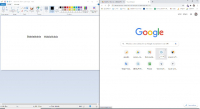
You want to work on two documents side by side on the same screen with each document occupying the left or right half of your screen? This is very easy to do in Windows with a simple combination of keys.
1. Put a document or window on the left half of your screen
Put yourself on the document or the window which should occupy the left half of your screen then hold the Windows key ( ⊞ which is at the bottom left of your keyboard) then press the left arrow key ( ← ).
Combination to put the document on the left half of your screen : ⊞ + ←
Result : 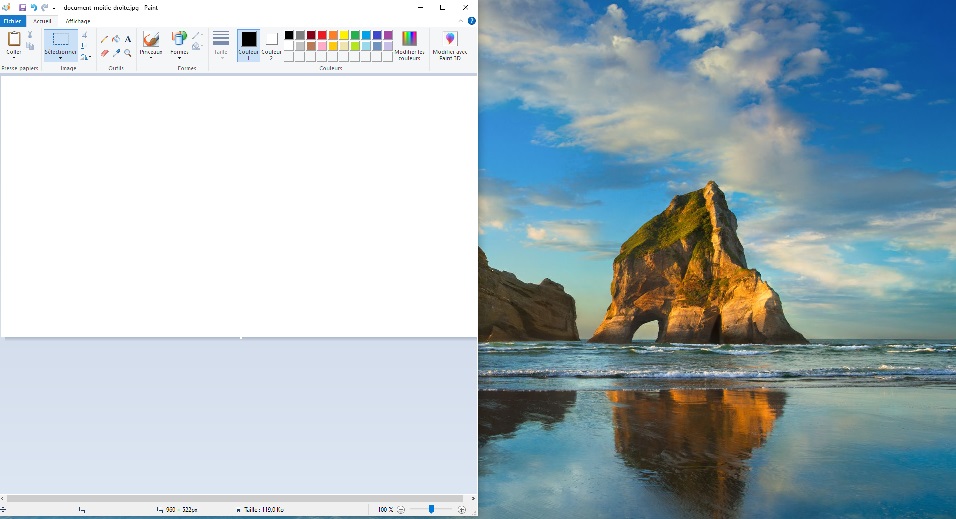
2. Put a document or window on the right half of your screen
Go to the document or the window which should occupy the right half of your screen then hold the Windows key hold the Windows key (⊞) which is at the bottom left of your keyboard) then press the right arrow key (→) on your keyboard.
Combination to put the document on the left half of your screen : ⊞ + →
Result : 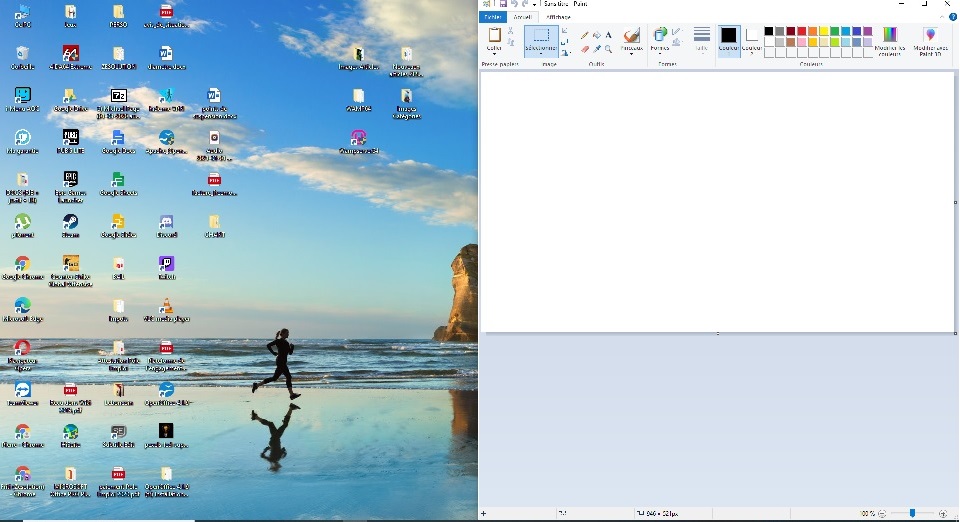
3. Having two documents occupying half of your screen
If you followed the instructions outlined above you should now have your two documents presented on the left half and right half of your screen, as shown in the image below.
This will allow you to easily copy and paste text and images from one document or window to another.
Result: 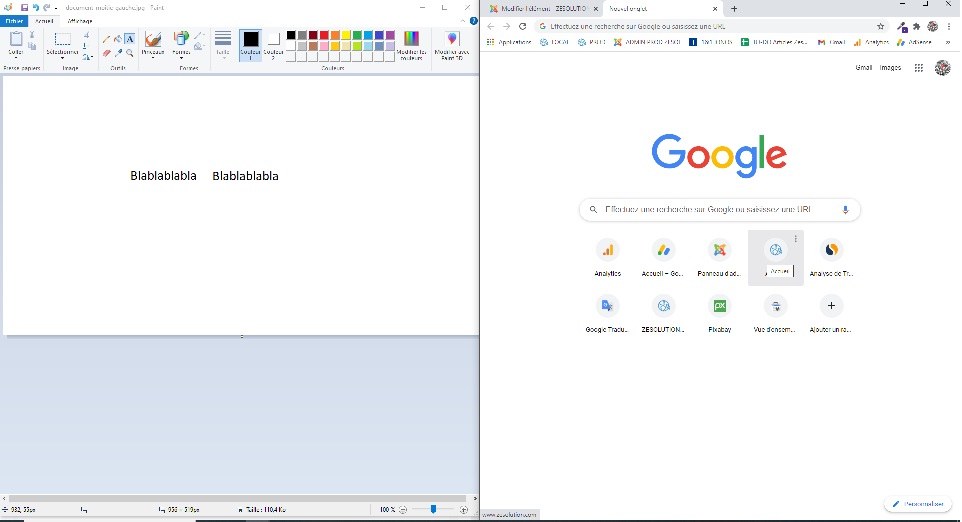

Are you in the process of writing but cannot find the "Delta" (Δ or δ) symbol ?
This greek letter, represented by a triangle in uppercase, does not exist on standard keyboards and is often used in science and mathematics to describe a difference between two quantities.
The good news is that it's very easy to achieve them thanks to a combination of keys on your keyboard. You can make this symbol in upper case (Δ) or lower case (δ) using the key combinations explained below.
1. Make the symbol "Delta" under Windows
- Make the symbol "Delta" in uppercase : Alt + 9 1 6 --> Δ
The technique : You keep the Alt key pressed (the key to the left of your Space bar), then you successively type the numbers 9 1 6, then you finally release the Alt key, which will make the "Delta" symbol appear in uppercase : Δ
- Make the "Delta" symbol in lowercase: Alt + 9 4 8 --> δ
The technique : You keep the Alt key pressed (the key to the left of your Space bar), then you successively type the numbers 9 4 8, then you finally release the Alt key, which will make the "Delta" symbol appear in lowercase : δ
Important : This technique only works with Microsoft products as Word, Outlook, Powerpoint, etc...
If you want to achieve this symbol in another software, you'll have to go through the "Special Caracter" menu of the software.
Alternatively you can simply copy-paste the symbol from this webpage : Δ or δ

Are you in the process of writing dimensions but cannot find the "Beta" (ß) symbol ?
This symbol does not exist on standard keyboards, but it is very easy to achieve it thanks to a combination of keys on your keyboard. You can make this symbol using the key combinations explained below.
1. Make the symbol "Beta" under Windows
- Make the symbol "Beta" : Alt + 2 2 5 --> ß
The technique : You keep the Alt key pressed (the key to the left of your Space bar), then you successively type the numbers 2 2 5, then you finally release the Alt key, which will make the "Beta" symbol appear.
Alternatively you can simply copy and paste the symbol from this page : ß

Are you in the process of writing dimensions but cannot find the "Alpha" (α) symbol ?
This symbol does not exist on standard keyboards, but it is very easy to achieve it thanks to a combination of keys on your keyboard. You can make this symbol using the key combinations explained below.
1. Make the symbol "Alpha" under Windows
- Make the symbol "Alpha" : Alt + 9 4 5 --> α
The technique : You keep the Alt key pressed (the key to the left of your Space bar), then you successively type the numbers 9 4 5, then you finally release the Alt key, which will make the "Alpha" symbol appear.
Important : This technique only works with Microsoft products as Word, Outlook, Powerpoint, etc... If you want to achieve this symbol in another software, you'll have to go through the "Special aracter" menu of the software.
Alternatively you can simply copy-paste the symbol from this webpage : α

You want to type the mathematical symbol " function" (ƒ) and do not know how to do it in a text field, a word processing document?
Indeed, there is no key on your keyboard which exists to do so but you can simply achieve the "function" symbol ƒ by typing the key combination below:
Make the symbol "function" on Windows : Alt + 1 5 9 = ƒ
The technique : You keep the Alt key pressed (the key just at the left of your Space bar), then you successively type the numbers 1 5 9, then you finally release the Alt key, which will bring up the " function" symbol: ƒ
Make the symbol "function" on Mac / Macbook : Option ⌥ + F = ƒ
The technique : You keep the Option ⌥ key pressed, then you type the letter F, then you finally release the Option ⌥ key, which will bring up the " function" symbol: ƒ

Are you in the process of writing dimensions but cannot find the "Diameter" (Ø) symbol ?
This symbol represented by a "crossed out O" does not exist on standard keyboards, but it is very easy to achieve it thanks to a combination of keys on your keyboard. You can make this symbol in upper case (Ø) or lower case (ø) using the key combinations explained below.
Summary:
1. Make the symbol "Diameter" under Windows
2. Make the symbol "Diameter" under Mac OS / Apple
1. Make the symbol "Diameter" under Windows
- Make the symbol "Diameter" in uppercase : Alt + 1 5 7 --> Ø
The technique : You keep the Alt key pressed (the key to the left of your Space bar), then you successively type the numbers 1 5 7, then you finally release the Alt key, which will make the "Diameter" symbol appear in uppercase: Ø
- Make the "Diameter" symbol lowercase: Alt + 1 5 5 --> ø
The technique : You keep the Alt key pressed (the key to the left of your Space bar), then you successively type the numbers 1 5 5, then you finally release the Alt key, which will make the "Diameter" symbol appear in lowercase : ø
2. Make the symbol "Diameter" under Mac / Apple
- Make the symbol "Diameter" in uppercase : ⇧ Shift + Alt ⌥+ o
The technique : Keep the ⇧ Shift and the Alt ⌥ keys pressed ("Alt" key can also be called "Option"), then type the letter o, which will make the "Diameter" symbol appear in uppercase: Ø
- Make the "Diameter" symbol in lowercase : Alt ⌥+ o
The technique : Keep the Alt ⌥ key pressed, then type the letter o, which will make the "Diameter" symbol appear in lowercase : ø
You want to type the symbol "…" (3 small dots forming an ellipse ) and do not know how to do it in a text field, a word processing document on Windows or on Mac ? Follow the technique below.
Indeed, it can be practical to type 3 dots successively but it is grammatically wrong (the ellipses are only one character) and it can sometimes be important to make these points unbreakable to prevent them from being separated on two different lines.
Here are the methods to make the keyboard shortcut according to your operating system :
1. Make the "ellipsis" symbol under Windows:
Alt +01 3 3 = …
The technique : You keep the Alt key pressed (key just to the left of the Space bar), then you successively type the digits01 3 3 then you finally release the Alt key, which will display the symbol " ellipsis ": …
2. Make the symbol "ellipsis" under Mac / Apple:
Alt ⌥+; = …
The technique : Keep the Alt ⌥ key pressed (the key can also be called Option ), then without releasing the key, press the key ; (semicolon key) then release everything to display the three ellipsis.

To make the symbol "to the cube" (small 3 above a number) under Windows :
The symbol " square" (small 2 above a number, ex: 10²) means that the number annotated with this symbol must be squared, in other words to the power of 2 (ex: 10² = 10 * 10 = 100)
To make this symbol in a word processor :
- The keys combination is Alt + 2 5 3 : Keep the key Alt down (the key to the left of the space bar), then type in the numbers 2, 5 and 3 and finally release Alt key.
To make the symbol "to the square" (small 2 above a number) under Mac / Apple:
- First type the number "2" where you want it to be squared then
- Select the number 2 with your mouse (it must be highlighted) then
- Do the following key combination: Cmd ⌘ + ⇧ Shift + +
Example: 1m2 -> 1m2 -> Cmd ⌘ + ⇧ Shift + + -> 1m²
The Cmd ⌘ key can also be the "Apple" key, but it's usually the key just to the left of the Space bar.
This technique works for any superscript number, not just 2.
Troubleshooting
" I don't have a numeric keypad on my keyboard, what should I do? "
- If you don't have a numeric keypad on your keyboard, make sure you have activated the function Num Lock . If not, press the Fn + button Num Lock
- If you do not have the function Num Lock on your keyboard, try first pressing the key Fn and then performing the combination with Alt described in the previous paragraph.
- If you still can't do it, don't hesitate to copy and paste the symbol from this article to the location of your choice.

You want to type the symbol " spade " ( ♠ ), sign representing one of the four colors of playing cards and you do not know how to achieve it on your keyboard to integrate it into a document or a word processing tool or image like Word, Open Office or Photoshop?
To make the sign "spades" on your keyboard, simply perform the following key combination : Alt + 6 = ♠
In detail : Keep the Alt key (located to the left of the Space bar), then type the number 6 and finally release the Alt key, which will bring up the " spades " symbol: ♠
This symbol represents one of the 4 suits or "signs" of playing cards.
Do you want to know how to do the other colors of the cards on your keyboard ? Click on the following links:
- How to make the "club" symbol (♣) on the keyboard

You want to type the "woman" / "feminine" symbol (♀) on your keyboard, female sign with a circle and a cross going down and you do not know how to do it on your keyboard to embed in a document or a word or image processing tool like Word, Open Office or Photoshop?
The technique
To make the feminine sign on your keyboard, simply perform the following key combination:
Make the woman / female symbol : Alt + 1 2 = ♀
In detail : Keep the Alt key pressed (the key at the left of the Space bar), then type the numbers successively1 2, then you finally release the Alt key, which will bring up the " woman " symbol: ♀
This symbol originally represents the Goddess of love Venus and is still widely used today, for example to represent gender or sex on toilet doors in public places with the male symbol: ♂
To know how to make the "masculine" symbol ♂, click on the following link: How to make the "man" symbol (♀) on the keyboard
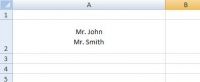
In order to be able to skip a line in an Excel box without going to the box located just below, you have to make a combination of keys.
To make a breaking line inside an Excel box, type in Alt+ Enter ↵. the cursor should go in the row below but will stay in the same box.